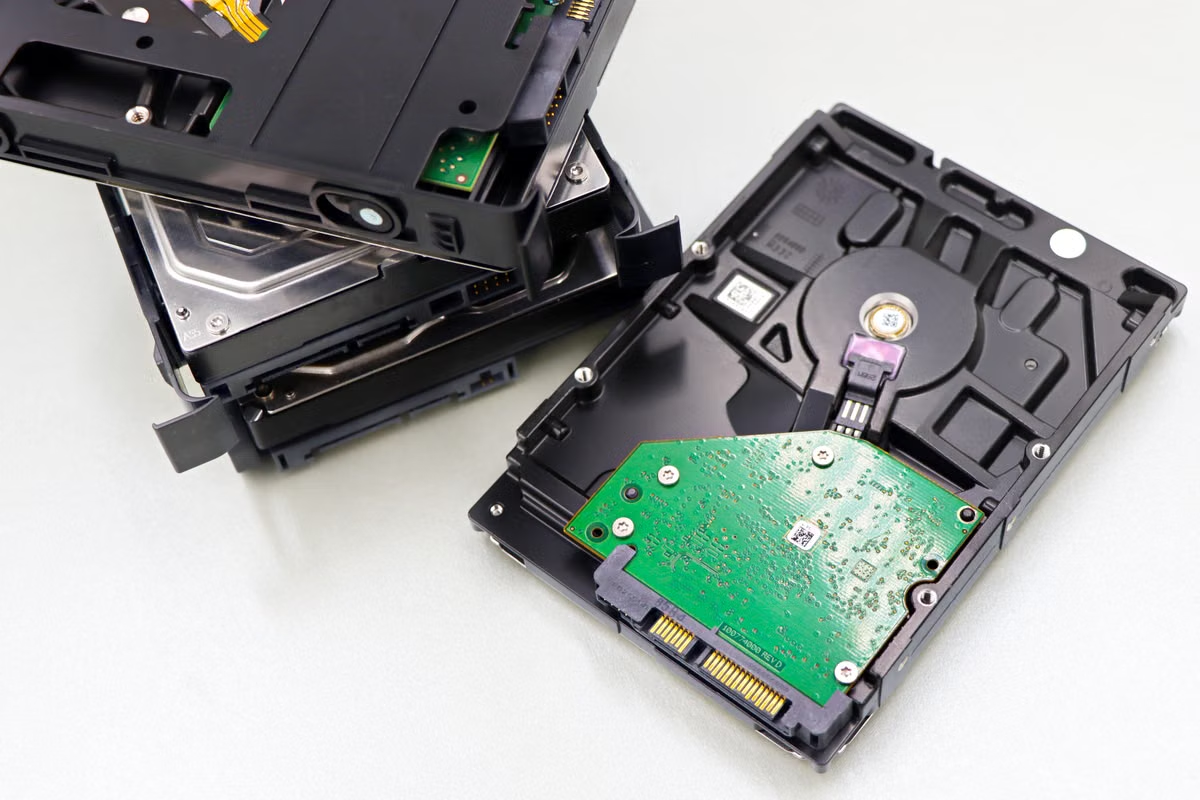
The Jenkins Mac Agent is reporting low disk space, or builds are failing during writes.
First identify whether workspaces, Xcode components, or build artifacts are consuming space; clean only the confirmed source. If alerts return after controlled cleanup, use real task records to revise workspace policy or reassess the Mac CI node.
This runbook is for enterprise IT leads investigating whether disk alerts threaten CI reliability. Platform engineering leads maintaining Jenkins Mac Agents, workspaces, and Xcode environments should use it before changing cleanup jobs. Engineering directors can use the decision criteria to choose between better retention rules and a different Mac CI capacity plan.
Disk alerts and build failures
A disk alert is evidence of storage pressure, not proof that storage caused a failed build. A failed write, an error during archive creation, and a queued or network-stalled job point to different failure paths. Compare host-level storage observations with the affected build’s stage and timestamp before changing the node.
Jenkins Pipelines can define stages, post-build actions, and agent behavior in the pipeline configuration. The relevant logs and configuration are therefore part of diagnosis, not optional context; start with the Jenkins Pipeline documentation and inspect the actual job that failed.
| Observed symptom | Evidence to collect | Initial interpretation |
|---|---|---|
| Host reports low available storage, and the build log shows a write or archive failure | Available space at the failure time, affected path, stage, and build log | Storage is a plausible cause; identify the path before cleanup |
| Build fails without a related write error, while the host has no matching storage alert | Failure stage, tool output, network or dependency messages, and host storage record | Investigate the toolchain, dependency, network, or job configuration first |
| Builds wait in the queue, but running tasks show no write failure | Queue state, agent availability, and task assignment | A queue or agent availability issue may be separate from disk pressure |
| Disk alerts appear, but no single build fails | Storage trend and directory growth over comparable task windows | Investigate retained workspaces, components, and artifacts before attributing the issue to one job |
For a useful incident record, capture the host’s available and used space, the directories with the largest observed growth, the failed job and stage, and timestamps that let you align host observations with Jenkins logs. These are team-specific measurements, not values that can be inferred from Apple or Jenkins documentation.
Workspace retention
A Jenkins workspace can remain after a build, depending on how the job and cleanup steps are configured. Jenkins documents workspace cleanup as an explicit Pipeline step; review the Workspace Cleanup step reference and the pipeline’s own post-build logic instead of assuming that every completed task removes its files.
Concurrent tasks can also leave distinct working directories or produce overlapping output, depending on how the job is configured. Inspect the agent’s actual workspace layout and the job’s concurrency settings. A workspace that looks old may still be relevant to a running task, a failed build investigation, or a reproduction attempt.
| Workspace condition | Space risk | Diagnostic value | Cleanup approach |
|---|---|---|---|
| Successful build with reproducible inputs and archived outputs | Retained workspace may accumulate | Usually lower after required outputs are verified | Consider cleanup after the job’s required outputs and logs are preserved |
| Failed build under investigation | Workspace may remain while the cause is diagnosed | Often useful for reproducing or inspecting the failure | Preserve it until the incident owner confirms it is no longer needed |
| Interrupted or cancelled build | Partial outputs may remain | Can explain where a task stopped | Identify the task state and owner before removing its directory |
| Concurrent build activity | Active workspace may be changing | Required to understand task isolation and output ownership | Exclude active workspaces from broad cleanup operations |
For a controlled change, specify what triggers cleanup, which paths it can affect, and what records must be retained. Keep failure evidence long enough for your team’s investigation process. Do not use a general workspace deletion as a substitute for an explicit artifact-retention policy.
Xcode components and Simulator runtimes
Xcode includes components that teams may not need on every build node. Apple documents management of platforms, optional components, and Simulator runtimes through Xcode’s component-management workflow; use the official Xcode components guidance to identify what the installed environment can manage.
Begin by mapping each Xcode version and component to the projects and jobs that use it. A runtime that appears unused on one node may still be needed by another branch, test matrix, or scheduled validation job. Verify the dependency with the project owners and pipeline definitions before removing it.
Can you safely remove an Xcode Simulator runtime? Only when you have confirmed that no active or scheduled job depends on it, and you use Xcode’s supported component-management process. Apple also documents how to add Simulator devices and runtimes. That is useful for understanding the managed workflow, but it does not establish which runtime your team can remove. Do not make manual deletion of protected or managed directories a general cleanup instruction.
| Xcode-related storage area | What to verify | Safer decision |
|---|---|---|
| Xcode application and installed versions | Which jobs select each installed version and whether parallel toolchain support is required | Keep versions referenced by active pipelines; remove only after job owners validate the migration |
| Platform support and optional components | Which project targets and build steps depend on each component | Use Xcode’s component-management interface to assess unused items |
| Simulator runtimes | Which test jobs select each runtime and whether scheduled suites still require it | Confirm job and test dependencies before removing through the supported workflow |
| Derived or job-generated output | Whether the data is a reusable cache, a temporary output, or evidence needed for diagnosis | Apply a documented retention rule, then validate a clean build |
Build artifacts, logs, and retention
Archives, symbol files, test reports, logs, and temporary outputs do not all have the same retention value. Some can be regenerated; others may be needed to release software, investigate a failure, or meet an internal evidence requirement. Before removing files, identify their owner, purpose, location, and required retention rule.
Apple’s Mac storage guidance describes the available storage-management view in macOS. Use Apple’s storage settings guidance as a host-level aid, then inspect the Jenkins job and artifact destinations to determine what is actually consuming space. A storage summary can help locate pressure, but it does not decide whether a particular build output is safe to discard.
| Output type | Why it may need to stay | Question for the owner |
|---|---|---|
| Release archive | May be needed for distribution or release verification | Is the archive retained in an approved location, and is this local copy required? |
| Symbols and diagnostic files | May support post-release crash investigation | Which release or diagnostic process consumes them? |
| Test reports | May document a test result or support a failed-build investigation | Is the report stored elsewhere, and when may this copy be removed? |
| Build logs | May be the clearest record of a failure or release process | Does the incident or audit policy require this log? |
| Temporary output and caches | May be reproducible, but can affect subsequent build behavior | Can the job recreate it, and has that been verified on this agent? |
Cleanup rollout and recovery checks
A cleanup rule can free space while also removing the context needed to reproduce a failure. Make the scope narrow, retain the evidence your team needs, and validate the behavior on representative jobs before applying it across agents. The Jenkins cleanup step documentation describes the available step; your job’s configuration still determines when it runs and what it targets.
Use this rollout checklist before making a cleanup policy routine:
- [ ] Record the agent’s available and used space and the directories showing growth.
- [ ] Link the observation to the affected Jenkins job, build stage, and failure log.
- [ ] Identify whether the suspected files belong to an active workspace, a completed task, an Xcode component, or a retained artifact.
- [ ] Ask the job or release owner which files must remain available for reproduction, release, audit, or diagnosis.
- [ ] Define cleanup scope and timing so that active workspaces and required evidence are excluded.
- [ ] Test the rule on a representative job and inspect the resulting workspace and retained outputs.
- [ ] Run a real build that exercises the relevant dependency resolution, Xcode selection, and Simulator requirements.
- [ ] Confirm that the logs and artifacts required by your team remain accessible after cleanup.
- [ ] Document how to disable or revert the rule if builds fail or required evidence disappears.
Recurring alerts and Mac CI capacity
A cleanup that resolves one incident does not prove that the node has enough capacity for its ongoing workload. Compare records from representative periods: directory growth, build and cleanup timing, task overlap, recurrence of alerts, and the artifacts your team must retain. Do not use an assumed free-space threshold or a promised cleanup gain to justify a capacity change.
| Evidence from the team’s records | Prefer cleanup-policy changes when… | Reassess the Mac CI node when… |
|---|---|---|
| Main source of growth | A specific completed workspace or disposable output is responsible | Growth comes from required components, retained evidence, or ongoing task output |
| Recurrence pattern | A clear retention gap explains repeated accumulation | Alerts return despite verified, scoped cleanup |
| Task overlap | Cleanup can be scheduled without affecting active jobs | Concurrent tasks compete for the same node and its workspace or output paths |
| Retention obligations | Required release and diagnostic files can be stored and retained under an approved policy | Required artifacts and supported toolchains cannot fit within the current operating model |
| Validation result | Representative builds pass after the policy change with required evidence intact | Builds remain affected after cleanup rules and dependencies are verified |
That comparison should include operational constraints as well as storage: who administers the agent, how access is controlled, how jobs are isolated, how toolchains are maintained, and how evidence is retained. If you are considering a remote Mac as part of that assessment, review MACGPU’s available remote Mac options and the MACGPU Mac ordering information, then verify the current configuration, rental period, and delivery details against your team’s requirements. Do not infer a storage guarantee or build-performance outcome from the fact that a Mac is remotely hosted.
Your existing Mac may remain the better fit when the workload is stable, the team needs local physical access, or the organization already has a supported operating model. A remote Mac can be worth evaluating when you need a temporary test environment or want to compare another hosted node without making an immediate hardware purchase. Make that decision from verified job records and the current service details—not from a disk alert alone.