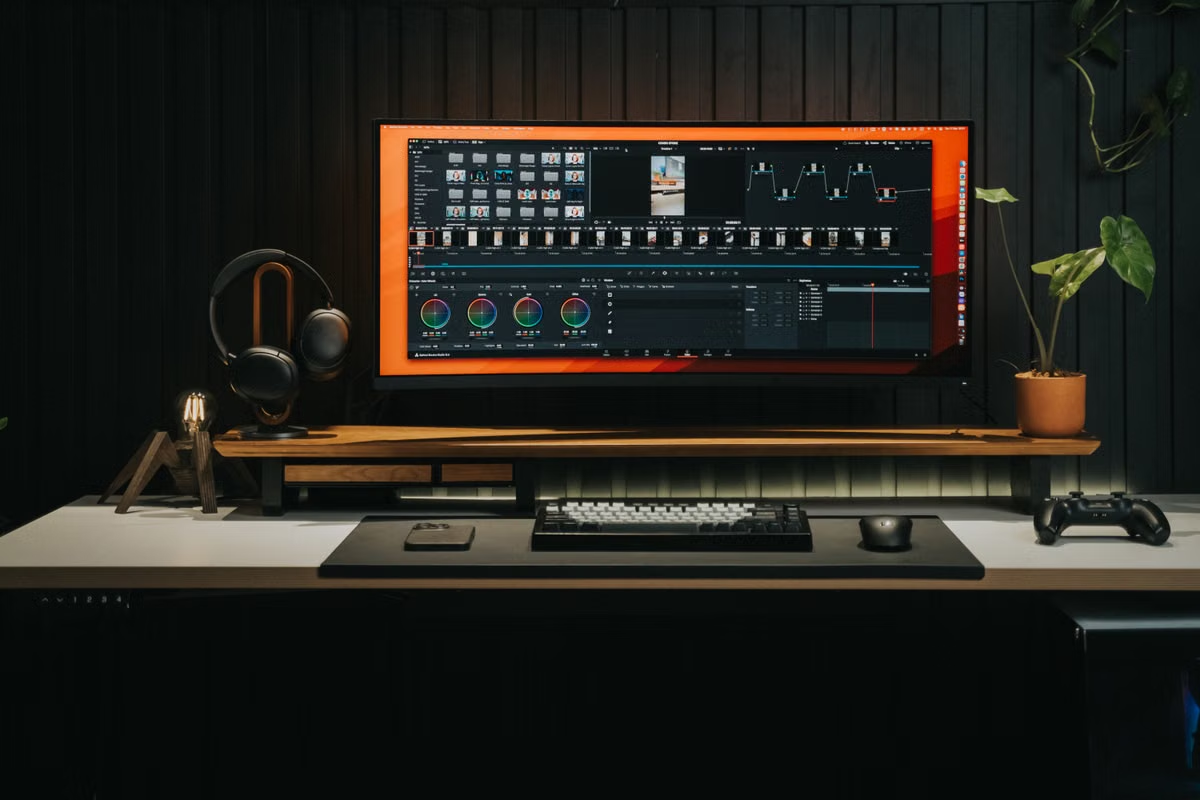
Your 8K timeline stutters, effects must be disabled, or exports block the rest of the team.
The fastest fix is to test a representative project on M5 Max first; choose M5 Ultra only when multi-stream source media, complex effects, sustained batch exports, or memory pressure remain daily problems.
This guide is for freelance editors who normally work on Windows and need temporary access to a powerful Mac, post-production professionals comparing M5 Max with M5 Ultra, and production leads who need an acceptance standard before buying or renting equipment.
Last updated September 14, 2026. Product dates and published specifications were checked against Apple’s Mac Studio announcement and the official Mac Studio technical specifications. Actual editing performance remains dependent on the project, software version, media, plugins, storage path, and connection method.
Start by classifying the project before ordering
“8K” describes the source or delivery resolution. It does not describe the complete editing workload. A lightly edited single-camera project using proxy media can place a very different demand on the system than a multi-camera timeline with noise reduction, stabilization, color transforms, motion graphics, and several active plugins.
Before you compare chips, write down these items:
- Number of camera angles shown at the same time.
- Original codec and whether the media is intraframe or highly compressed.
- Whether you will edit from original media, proxy media, or a mixed timeline.
- Number and type of effects that stay enabled during review.
- Whether motion graphics are rendered inside the editing application or linked from another project.
- Whether you need to edit while another project is exporting.
- Whether the project is a one-off delivery or part of a repeated batch workflow.
Will M5 Max stutter when editing 8K video? It may not, but the answer cannot be established from the resolution label alone. A proxy-based timeline with ordinary effects is a different test from several streams of high-resolution original media with temporal effects and motion graphics. Start with M5 Max if your normal workflow permits proxies and your delivery schedule leaves room for a full project test.
Apple has positioned the new Mac Studio configurations for professional workloads, but its published specifications do not replace your own project validation. The Mac Studio product page is useful for confirming the platform and model range. It is not evidence that your particular timeline will play smoothly.
**Runbook note:** Keep a copy of the project, not the only working file, for the first test. A test environment should be disposable. Your client project should not be.
Use the September delivery timeline instead of launch claims
Apple announced the M5 Max and M5 Ultra Mac Studio on August 25, 2026. Apple stated that delivery would begin on September 22, 2026, while some higher-memory options were planned for late October. These dates come from the Apple Newsroom release, not from third-party testing.
That distinction matters because a pre-delivery purchase decision has two separate questions:
- What does Apple officially offer?
- What does your real project require after the machine, operating system, application, plugins, and storage are installed?
Can you predict real editing performance before Mac Studio ships? You can define the test plan before delivery, but you cannot use launch positioning or theoretical performance claims as a substitute for an actual project test. Treat media coverage and unverified benchmarks as observations, not as a purchasing conclusion. After delivery begins, recheck the available configurations, installed system version, and creative software compatibility before committing to a team-wide standard.
For a Windows-based editor, this is also the point to separate the software question from the hardware question. If the project depends on Final Cut Pro, you need a macOS environment. If the application is available on multiple platforms, the Mac may still be attractive for media handling or team consistency, but it is not automatically the best long-term purchase.
Build the first test around a real project copy
The first session should not be a demo reel, an empty timeline, or a single playback clip. Choose a recently delivered or nearly delivered project that represents your normal pressure. Remove client-identifying material if necessary, but preserve the structure that creates the workload.
What project should you use to test a Mac Studio before buying it? Use a representative project copy with the same source-media pattern, timeline structure, plugins, graphics, audio layout, and delivery target as your paid work. A short sample can confirm that an application opens. It cannot establish whether your complete workflow remains usable across a working day.
Follow this sequence:
- Record the project environment.
- Prepare both original and proxy paths.
- Reconnect the media from a clean project copy.
- Open the demanding sections first.
- Test playback quality deliberately.
- Load the normal plugin set.
- Repeat the same section after reopening.
Use the first full workday to separate delay from compute
A remote Mac adds a second source of delay. The screen may respond slowly because of the network even when the application has completed the edit operation quickly. Conversely, the interface may feel responsive while playback, rendering, or export remains compute-bound.
Keep two records:
- Remote interaction: pointer response, keyboard response, menu opening, timeline scrubbing, and visual update delay.
- Application workload: decoding, effect processing, background rendering, cache generation, and export behavior.
During the first complete workday, perform the same actions you would perform for a client delivery:
- Review the multi-camera sections.
- Scrub through color-heavy sections.
- Toggle stabilization, denoising, and other expensive effects.
- Load and adjust motion graphics.
- Make several edits without rebuilding the project from scratch.
- Close and reopen the application.
- Continue working while background rendering or media preparation is active.
- Review the project from both original and proxy media where applicable.
One difficult shot is not enough. A recurring failure across the working day is meaningful.
**Acceptance rule:** If you can keep the normal editing process intact with proxies, ordinary effects, and an acceptable review mode, do not upgrade solely because the source files are labeled 8K. If you must repeatedly disable essential effects or wait for the system during ordinary decisions, move the issue into the Ultra review path.
Verify the first complete export before committing
The export is where a comfortable timeline can reveal a production bottleneck. Use the actual delivery preset, frame size, frame rate, audio layout, color requirements, subtitles, graphics, and plugin output. A short test can identify a missing codec. It cannot tell you whether the complete project will finish reliably.
Check these items:
- Does the complete source media remain available throughout the export?
- Does the destination have enough free space for cache and output?
- Do plugins render the same result as they did in the timeline?
- Are color, audio, captions, and graphics preserved?
- Can another team member work during the export?
- Does the project need several outputs in sequence?
- Does the export fail only after a particular effect or linked asset?
If you use another professional video application, check its current requirements separately. For example, the official technical requirements for Adobe Premiere Pro are useful for compatibility planning, but meeting a published requirement does not guarantee a particular 8K timeline result.
The team decision should include throughput. A single export that finishes acceptably may still be the wrong choice if one editor must export continuously while another editor works on the same machine. Conversely, a machine that is rarely used for 8K may not justify the cost of the highest configuration.
Score the workflow, then choose the configuration
Use this scorecard after the full project test. It is a decision method, not a benchmark published by Apple.
- Pass: The project opens with all required assets, the normal editing method remains usable, essential effects stay enabled, and the complete delivery finishes without a production-blocking fault.
- Watch: The project works after using proxies, lowering preview quality, changing cache placement, or scheduling exports, but those changes are acceptable for your work.
- Fail: Essential effects must remain disabled, media repeatedly disconnects under the intended setup, the project cannot complete the required delivery, or the system blocks other required work.
- M5 Max: Start here for occasional 8K projects, proxy-friendly workflows, ordinary grading and effects, and one-project delivery where the schedule allows a controlled export.
- M5 Ultra: Consider this when multiple high-resolution source streams, complex compositing or denoising, sustained batch exports, or memory pressure are routine and the M5 Max test repeatedly fails.
- Short-term remote Mac test: Use this when you need to validate a project before buying hardware, when 8K work is occasional, or when a Windows-based workflow needs temporary access to macOS. You can review the available MACGPU remote Mac access options before preparing the test environment.
| Workload pattern | First configuration to validate | Acceptance signal | Escalation condition |
|---|---|---|---|
| Occasional 8K, proxy media, ordinary effects | M5 Max or a short remote Mac test | Editing remains usable and delivery completes | Essential effects remain disabled |
| Frequent original-media review with several active effects | M5 Max first, then compare Ultra if needed | Timeline remains usable during the full workday | Repeated compute stalls affect normal decisions |
| Multi-stream high-resolution source media and heavy temporal effects | M5 Ultra | Complete project remains workable without constant compromises | Only a higher-memory option resolves the project pressure |
| Repeated batch exports for a team | M5 Max if throughput is acceptable; otherwise M5 Ultra | One export does not block the next required task | Parallel work or export queues become the bottleneck |
| Uncertain workload or one-off client project | Short remote Mac validation before purchase | Representative project passes with documented conditions | The project fails after clean media and plugin checks |
Choose the purchase only after the evidence is complete
The safest answer to “Is Mac Studio M5 Max enough?” is conditional: for most proxy-based 8K editing with conventional effects and a single-project delivery, validate M5 Max first. Choose M5 Ultra when the demanding conditions are persistent, measurable, and tied to daily output rather than to one impressive-looking timeline.
A local purchase is sensible when you run heavy projects continuously, need predictable physical storage and interfaces, require uninterrupted access, and can keep the machine busy enough to justify ownership. A remote Mac is often a better first step when the 8K workload is occasional, the project is temporary, you are still comparing M5 Max with M5 Ultra, or you work mainly from Windows and need to validate a macOS workflow before changing your equipment plan.
Your current Windows setup may avoid a new hardware purchase, but it cannot directly provide the macOS-only application environment required by a Final Cut Pro workflow. It may also force a software substitution, a project conversion, or a second round of compatibility checks. A local Mac removes network delay but creates an upfront hardware commitment and can leave an expensive workstation idle between projects. A short MACGPU rental lets you test the real timeline, plugins, proxy path, and final export before you make that longer commitment.
Prepare a sanitized project copy, define the pass conditions, and test M5 Max before treating M5 Ultra as the default. If you only need temporary compute or a controlled pre-purchase validation, review the available remote Mac rental path from MACGPU and use the result of your own project—not the chip label—as the final buying signal.