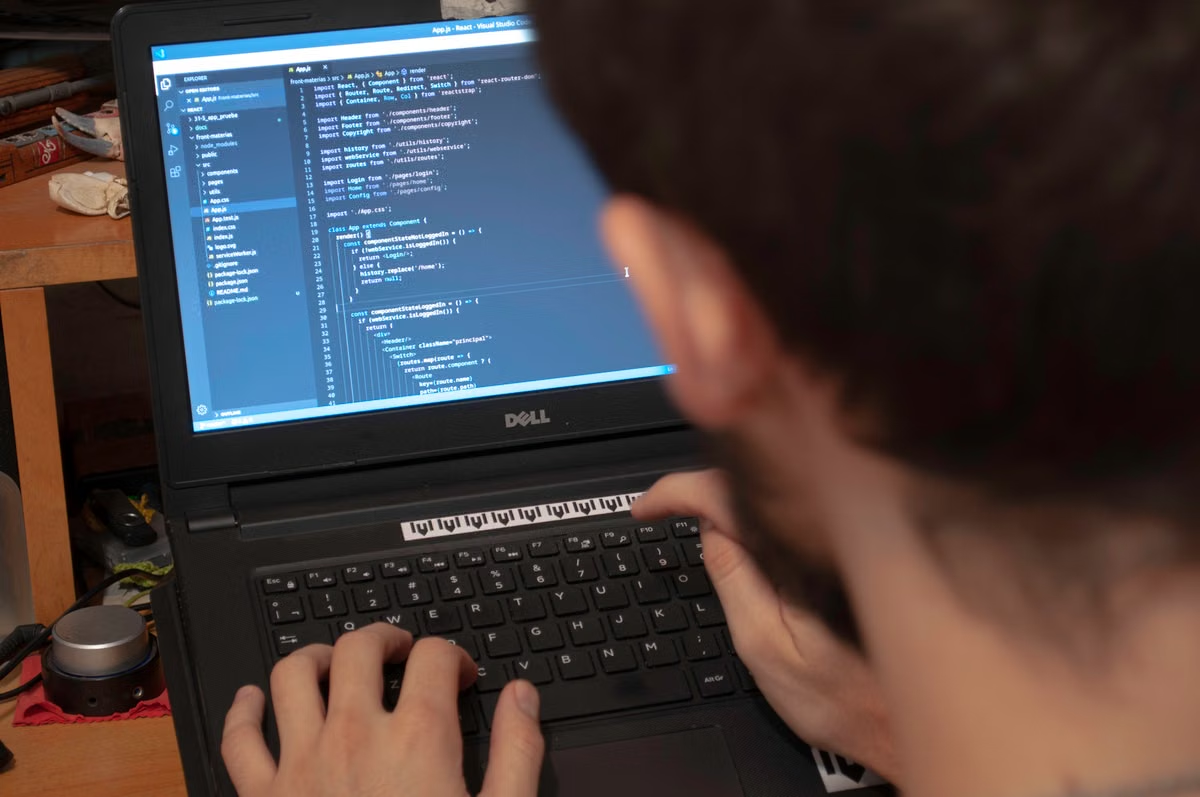
Symptom: You have a Windows PC and are unsure whether you can keep up with a Swift course. Fastest fix: Use Windows for language practice and projects your course confirms are cross-platform; arrange access to a Mac before any assignment that requires Xcode, an iOS build, or simulator testing.
This guide is for students who are learning Swift on Windows, beginners checking whether their Swift Package coursework will run on their computer, and learners whose course requires Xcode but who do not yet have a Mac.
Last reviewed October 25, 2026. Version and platform details were checked against the Swift 6.4 release notes, Swift’s Windows installation guide, and Apple’s Xcode system requirements. Check those pages again before starting a new course: tool versions and supported operating systems can change.
Start with the course deliverable
Swift 6.4 is a Swift language and toolchain release. Its availability on Windows means you can use a Swift toolchain there for supported learning tasks; it does not mean Windows provides Xcode or an iOS simulator. Those are separate requirements.
Before choosing a computer, find the course’s actual deliverable. A lesson may ask you to write a small program, submit a Swift Package, or build and demonstrate an iOS app. Those tasks do not have the same environment requirements. A Windows setup can be enough for the first kind, may work for the second, and cannot replace a compatible Mac environment for work that depends on Xcode.
Look at the submission instructions, grading rubric, and starter project—not only the course title. “Learn Swift” does not tell you whether the final assignment is a command-line exercise or an iOS app. If you cannot find a clear answer, ask the instructor whether the project must open in Xcode, whether it must build for iOS, and whether an iOS simulator check is part of grading.
This distinction matters when deciding whether to buy, borrow, or rent a Mac. If you need to practise syntax now, you can start on the Windows computer you already have. If the course will later grade an iOS app, plan that Mac access before the deadline rather than discovering the requirement at submission time.
Can you write and run Swift on Windows?
Yes, you can use Swift on Windows for language learning and supported projects, provided the toolchain and the course’s requirements match. Swift.org publishes Windows installation instructions, including a Windows setup guide and a manual installation guide. Follow the current instructions there instead of assuming that a toolchain from a different operating system will work the same way.
For a beginner, “development tools” means at least a Swift compiler and a way to edit source files. Swift’s official Windows documentation describes how to install the toolchain. You can then use an editor that suits your course and invoke the compiler or related command-line tools as the instructions require. If your instructor specifies an editor, shell, or exact toolchain version, use that specification rather than substituting one because it looks familiar.
That is enough to begin learning basic language concepts: variables, functions, types, conditions, and other topics the course assigns. But do not treat a successful installation as proof that every course exercise will work. Your course may rely on a particular version, a dependency, an operating-system feature, or a project structure that has not been tested on Windows.
Check four things before you commit to Windows as your only setup:
- The course permits your Swift toolchain version, or lets you install the required one.
- The assigned exercises use features and dependencies supported by the Windows toolchain.
- The expected run command and output can be reproduced on your computer.
- The instructor accepts results produced without Xcode, if Xcode is not available to you.
Which tools do you need to learn Swift on Windows?
Start with the course’s stated setup, then compare it with Swift.org’s current Windows instructions. The Swift installation documentation is the authority for installing the Windows toolchain; the Swift Package Manager documentation explains the package-management workflow. Use both to check whether your assigned project is a simple language exercise or a package-based project with additional requirements.
A lightweight setup may be enough for an exercise that consists of editing a source file and compiling it with the toolchain. A package project can involve a manifest, dependencies, and build steps. You should be ready to follow the course’s exact commands, and you should ask for clarification if the instructions refer to Xcode-only menus or project files that do not match your setup.
One easy mistake is to test only a tiny sample program, see that it runs, and conclude that the full course is supported. That test proves only that the particular sample ran with your installed tools. It says nothing about package dependencies, platform-specific code, or how the instructor will assess the final project.
If you are following a package-based lesson, compare the course’s project structure with the package instructions and verify the task on the same operating system you plan to use for submission. The Swift Package Manager can support workflows beyond one operating system, but the package documentation does not make every project or dependency automatically cross-platform. Project code and its dependencies still matter.**Check the assignment, not just the installation.** A working compiler confirms that you can begin some Swift practice. It does not confirm that a required project builds, that its dependencies support Windows, or that you can complete an iOS simulator check.
Do Swift syntax and iOS app development need the same computer?
No. Learning Swift syntax and completing an iOS app are different tasks. You can use Windows for supported Swift language practice, but Apple’s Xcode documentation and system requirements describe Xcode as software that runs in a compatible macOS environment. A Windows Swift toolchain is not a Windows version of Xcode.
This difference becomes visible in coursework. A language exercise may ask you to compile code and show its output. An iOS assignment may require an Xcode project, an iOS build, or a run in the iOS simulator. Apple’s guide to running an app on simulated or physical devices covers that Apple development workflow. If the marking rubric includes one of those steps, make sure you have access to a compatible Mac before you need to perform it.
Do not assume that installing Swift on Windows will give you the same app workflow. The compiler and toolchain help you write and build supported Swift code; Xcode provides Apple’s development environment and the relevant iOS project and testing workflow. A course can include both: you might practise general Swift concepts on Windows, then use a Mac for the app-specific part.
The reverse assumption is also risky: having a Mac does not automatically make an assignment compatible. Your Mac still needs a macOS version supported by the required Xcode release, and the course project must work with the versions and dependencies your instructor specifies. Apple’s current Xcode requirements list Xcode 27.2 RC and its macOS conditions as of the review date. Treat that as a dated reference, not a permanent requirement; check the page again when you begin your course.
Use the assignment to choose a Windows, Mac, or dual setup
Use this decision rule: stay on Windows if the course teaches Swift language concepts and confirms your exercises run there. Add a Mac environment if the course requires Xcode, an iOS build, or simulator-based assessment. Choose a dual setup if you want to practise on Windows but need a separate Mac for Apple-specific project work.
A dual setup can be practical when your Windows computer is already suitable for study. You can keep notes and do supported language exercises there, while using a Mac for the parts of the course that specifically require Apple tools. The important thing is to make the handoff clear in your own plan: which files you will edit where, which machine will perform the final build, and which environment your instructor will use to review your work.
This is not a reason to rent or buy a Mac automatically. If the course never asks for an Xcode project or iOS validation, a Mac may add cost without solving a current course requirement. If the course does ask for those tasks, relying on Windows alone can leave you unable to perform the required checks. Borrowing a school machine may be enough if access is dependable and allowed by the school’s device rules. If you need regular access beyond that, compare a local Mac with a remote Mac option; the MACGPU Mac access overview can help you understand the remote-access route.
Run this course-project check before committing
Use this checklist against the project you will actually submit. Do not base the decision on a generic “Hello, world” test.
- [ ] Read the submission requirements. Mark whether you must submit source files, a Swift Package, an Xcode project, an iOS build, or evidence from a simulator.
- [ ] Record the required Swift and Xcode versions. Compare the course instructions with the versions and operating-system conditions in the official Swift and Apple documentation.
- [ ] Identify the project type. Check whether the starter project is a command-line exercise, a package, or an Xcode app project.
- [ ] Check dependencies and platform assumptions. Look for packages, frameworks, or instructions that name macOS, Xcode, or iOS as a requirement.
- [ ] Test the assigned project on the intended system. Follow the course’s build and run instructions; do not substitute a simpler sample.
- [ ] Confirm the grading path. Ask the instructor whether a Windows build is accepted, and whether any iOS simulator or device check is mandatory.
- [ ] Arrange Mac access before the first Apple-specific deadline. Check that the Mac environment supports the required Xcode and macOS combination, and that your school permits the way you plan to access it.
The comparison below uses qualitative fit ratings, not a promise that every project will work. “Strong” means the task normally fits that environment when the course instructions agree. “Conditional” means you must verify the project, dependencies, and submission rules first. “Not a replacement” means that environment does not provide the required Apple tool.
| Course task | Windows with Swift toolchain | Compatible Mac with Xcode | What to verify |
|---|---|---|---|
| Practise Swift syntax and compile supported exercises | Strong | Strong | Required Swift version, commands, and course rules |
| Build a Swift Package project | Conditional | Conditional | Package code, dependencies, and course-specific build steps |
| Open and work in an Xcode iOS project | Not a replacement | Strong | Required Xcode and macOS compatibility |
| Build an iOS app | Not a replacement | Strong | Course target, signing instructions, and required tools |
| Run the app in an iOS simulator | Not a replacement | Strong | Xcode version and the course’s simulator workflow |
| What your course asks you to submit | Recommended route | Why |
|---|---|---|
| Swift exercises or supported command-line programs | Start on Windows | You can begin language practice without waiting for Mac access |
| A Swift Package with no confirmed platform requirements | Test on Windows, then confirm with the instructor | Package support depends on the project and its dependencies |
| An Xcode project, iOS build, or simulator result | Prepare a compatible Mac | Windows Swift tools do not replace Xcode or Apple’s iOS workflow |
| General Swift study plus an iOS assignment | Use a dual setup | Practise where convenient and reserve Mac access for Apple-specific tasks |
For a course limited to Swift syntax, keep using your Windows PC and spend time on the exercises, not on an unnecessary hardware change. When the rubric calls for Xcode, an iOS build, or simulator evidence, plan Mac access early enough to test the real project and fix setup issues before submission. A remote Mac can be a better fit than buying a computer for a short course requirement, but it is not the right choice if you need long-term local access or a physical connection that a remote environment cannot provide.