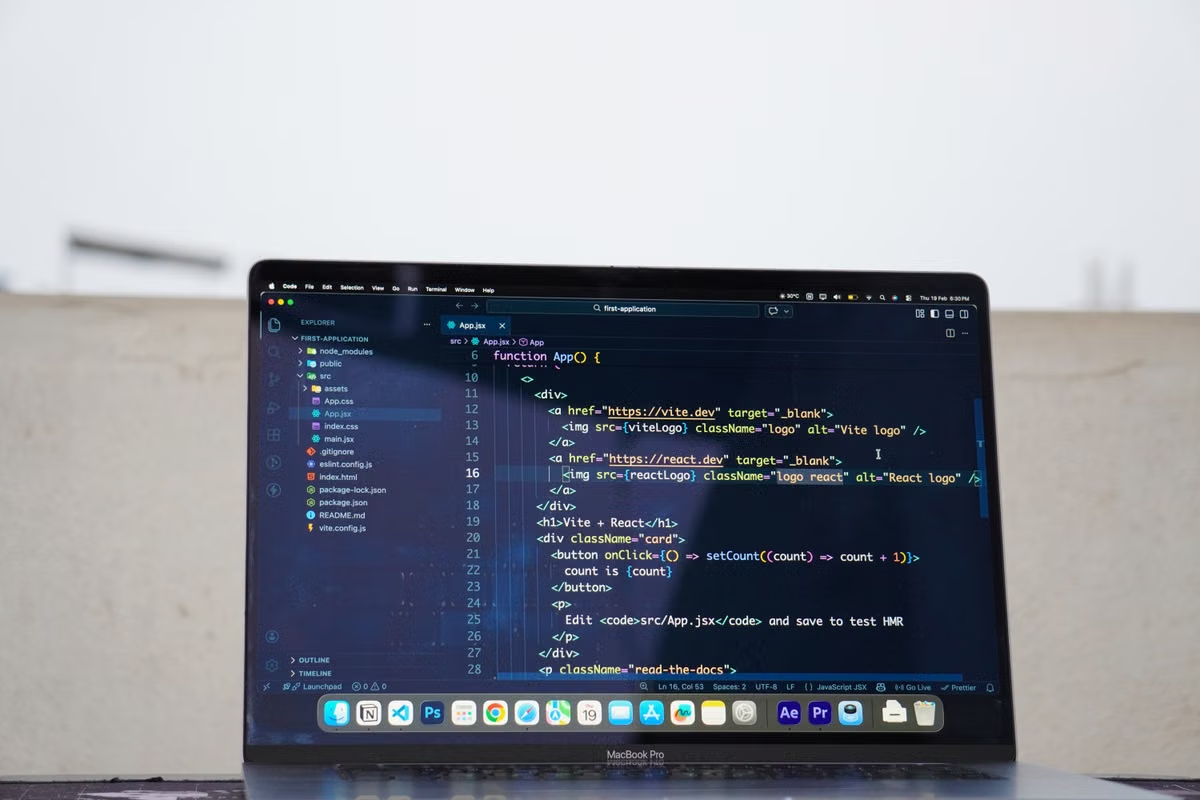
A Remote SSH session can run a server component on the remote host, not only open a basic terminal. That is why VS Code Remote SSH to a remote Mac in 2026 works well as a primary coding path from a Windows or Linux laptop, provided the Mac has Remote Login enabled and you can install the required remote components. VS Code’s official Remote SSH architecture documents this model.
Symptom → fastest fix: Your lightweight laptop can edit, run commands, install compatible extensions, and build on the remote Mac, but you should not treat SSH as a complete replacement for Xcode or graphical macOS tools.
iPad-only setup → fastest fix: Use a browser editor or remote desktop as the entry point, then keep SSH for terminal work where your chosen client supports it. Do not copy the desktop VS Code Remote SSH workflow into an iPad browser and expect identical capabilities.
Who should use this guide?
This guide is for developers traveling with a Windows or Linux laptop who still need a persistent macOS build environment. It also fits independent developers who write mainly in VS Code but use Xcode for signing, simulator testing, or final delivery.
If you plan to carry only an iPad, read the entry-device section carefully. Your best result will usually be a split workflow rather than a desktop Remote SSH setup copied unchanged.
Start with the entry device, not the Mac
The first decision is whether your client device can provide the interface you need. A remote Mac may be correctly configured and still feel unusable if the local entry point cannot manage the workspace, terminal, authentication, and reconnect behavior.
| Entry device | Best entry method | What it can reasonably cover | Decision |
|---|---|---|---|
| Windows laptop | Desktop VS Code with Remote SSH | Remote files, terminal, compatible extensions, builds, debugging within supported workflows | Good primary coding path |
| Linux laptop | Desktop VS Code with Remote SSH | The same core coding path, subject to local extension and architecture compatibility | Good primary coding path |
| iPad | Browser editor, SSH client, or remote desktop | Lightweight edits, terminal commands, emergency access, or graphical Mac control | Use a split workflow |
| Any device with unreliable browser support | SSH client plus remote desktop when required | Recovery commands and GUI-only operations | Keep a second entry path |
Can VS Code Remote SSH connect to a macOS host? Yes. The Mac must provide an SSH service through macOS Remote Login, and the account must be allowed to log in. The connection is not created by VS Code alone; VS Code uses the SSH access already exposed by the Mac. Apple’s Remote Login settings guide covers the account scope and SSH/SFTP access.
Run this entrance acceptance test before moving a real project:
- Open the remote project folder in VS Code.
- Open a terminal whose prompt identifies the remote Mac.
- Make one harmless code change.
- Run the project’s normal check or build command.
- Close and reopen the window, then confirm that the same remote workspace is available.
How can a Windows laptop use VS Code with a remote Mac project? Install the desktop version of VS Code, add the official Remote SSH extension, configure an SSH host entry, and connect to the Mac from the Remote Explorer view. Keep the project files on the Mac if the goal is a stable macOS environment. Do not mount the project through a slow file-sharing layer unless you have a specific reason; editing through the remote workspace avoids turning every save into a file-transfer problem.
First verify the Mac account and shell
Remote SSH fails in confusing ways when the Mac accepts a basic login but cannot support the development session. Treat host readiness as a separate metric from network reachability.
Check these conditions:
- Remote Login is enabled in macOS.
- The exact user account is included in the allowed list.
- The account can enter the intended shell.
- The account can read and write the project directory.
- The account can install the VS Code remote server and required project dependencies.
- The account has enough disk space for source files, package caches, build outputs, and logs.
- The expected shell profile loads in non-interactive SSH sessions.
- The service remains available after the Mac restarts.
The first shell check should identify where you actually landed:
whoami
hostname
pwd
echo "$SHELL"
Then check the project and toolchain from that same session:
ls
git status
xcodebuild -version
The last command is useful only if Xcode or its command-line tools are installed. Apple’s Xcode Command Line Tools reference describes the command-line tool layer, but it does not turn command-line tools into the full Xcode application.
| Host check | Observable evidence | If it fails |
|---|---|---|
| Account scope | Your intended account appears in Remote Login permissions | Restrict or add the correct account in macOS settings |
| Shell | whoami, hostname, and $SHELL show expected values | Fix the shell or SSH profile before troubleshooting VS Code |
| Workspace access | git status and file creation work in the project folder | Correct ownership or directory permissions |
| Remote component | VS Code completes its remote setup without a server error | Review the official [Remote Development troubleshooting guide](https://code.visualstudio.com/docs/remote/troubleshooting) |
| Build toolchain | The project’s normal check or build command runs | Install or repair the required tools on the Mac |
Make identity and access revocable
A travel workflow should use a separate SSH key for the remote development environment rather than treating a shared password as the permanent access method. The goal is not to hide Remote Login or bypass an organization’s controls. The goal is to make one device’s access removable without disrupting every other user.
Use this sequence:
- Create a dedicated key pair on the device you will carry.
- Protect the private key with a passphrase.
- Add only the public key to the intended Mac account.
- Create a named host entry in the local SSH configuration.
- Test key authentication before opening VS Code.
- Record where the public key was installed.
- Revoke the key when the device is lost, shared, or retired.
Host travel-mac
    HostName your-mac-host
    User your-development-user
    IdentityFile ~/.ssh/id_ed25519_travel
Replace the placeholders with your actual host and account details. Keep the configuration specific. A named host is easier to audit than repeatedly typing an address and accidentally selecting the wrong key.
If a laptop is stolen, remove its public key from the remote account’s authorized keys and review active sessions. If you used a shared computer, remove the private key from that machine and rotate the relevant access. If the private key may have been copied, treat it as compromised rather than relying on its passphrase alone.
What is the safer alternative to a permanent shared password? A restricted account with a passphrase-protected, device-specific key is easier to revoke and easier to identify. Password authentication may still be required by an organization, but you should follow its policy rather than weakening it for convenience.
The SSH service is normally reached through the standard SSH port, commonly TCP port 22, but the actual port and network path belong to the host administrator. Do not assume that changing a port makes an exposed service secure. The meaningful controls are account restriction, key management, firewall policy, auditability, and timely revocation. Apple’s Remote Login documentation is the reference for enabling the service and selecting users.
Score the connection across real work
A login test measures only the first few seconds. A traveling developer needs to know whether the environment survives the tasks that matter after the connection is established.
Score each area as pass, conditional, or fail:
- Editing: Can VS Code open the repository, search it, save a change, and show the remote workspace?
- Terminal: Do commands run on the Mac, with the expected environment variables and paths?
- Debugging: Does the selected debugger support the project and run in the remote context?
- Dependency installation: Can the Mac install the required packages without relying on a local laptop path?
- Build: Does the normal project build complete on the remote host?
- Reconnect: After a network change, can you return to the same workspace without creating a second confusing session?
Do not install every extension on both sides by habit. Start with the language service, formatter, debugger, and project tooling you actually need. If an extension behaves differently after connection, inspect its reported location and logs before changing the entire environment.
Will a VS Code Remote SSH session keep a project running after you disconnect? The answer depends on how the process was started and how the shell handles it. A foreground command tied to the terminal may stop when the session ends. A properly managed background service, terminal multiplexer, task runner, or project-specific process supervisor can continue, but you must verify that behavior on your Mac rather than assuming Remote SSH provides it automatically.
Test this deliberately:
- Start a harmless long-running development task.
- Disconnect the VS Code window.
- Change networks or suspend the laptop.
- Reconnect to the same host.
- Check whether the process, logs, and workspace state are still present.
Separate SSH coding from Xcode delivery
Remote SSH is a strong fit when the work is text-centric: source editing, Git operations, command-line builds, linting, tests, scripts, and server-side tooling. It is not a universal graphical Mac replacement.
For Apple platform work, ask what the final delivery action requires. Apple’s documentation for running apps on simulated or physical devices places simulator and device workflows inside Xcode’s broader development environment. A command-line build may be enough for one project stage, but it does not automatically cover simulator interaction, signing inspection, provisioning changes, visual debugging, or other GUI tasks.
Does remote iOS development still require Xcode? Often, yes. You may use VS Code for editing and the command line for selected build or test steps, but keep access to the full Xcode interface when the project requires simulator control, device deployment, signing review, or a graphical diagnostic workflow.
| Delivery requirement | Pure SSH | SSH plus remote desktop | Keep a local Mac |
|---|---|---|---|
| Edit code and run shell tools | Strong fit | Works | Works |
| Run repeatable command-line builds | Strong fit if tools are installed | Works | Works |
| Inspect simulator behavior | Poor fit | Suitable | Suitable |
| Manage signing or graphical Xcode settings | Limited | Suitable | Suitable |
| Work with physical device interfaces | Usually unsuitable | Depends on hardware access | Best when the device is local |
| Travel with only a lightweight laptop | Best for coding | More flexible, but network-sensitive | Least portable |
Test weak networks and recovery before departure
A coffee shop network, hotel connection, or mobile hotspot can pass a login test and still expose weaknesses during daily work. Test changes in network state, not only normal operation.
Use this recovery runbook:
- Connect from your primary laptop and open the real project.
- Run the project’s normal validation or build command.
- Close the laptop lid or suspend the session.
- Reconnect through a different network.
- Confirm the remote window, terminal context, and project files.
- Start a safe background task and disconnect.
- Restart the Mac during a planned maintenance window.
- Reconnect after the host returns.
- Repeat the build or validation command.
- Record what must be restarted manually.
Browser access adds another boundary. VS Code for the Web can be convenient from an iPad, but it is not identical to the desktop application’s Remote SSH path. The official VS Code for the Web documentation describes its supported capabilities and limitations. Use it for browser-suitable editing and remote work where the service supports it; use a remote desktop when the task needs the full Mac GUI.
Can an iPad use VS Code Remote SSH in the same way as a laptop? Not reliably as a direct copy of the desktop workflow. An iPad can serve as an emergency terminal, browser editor, or remote desktop client, but the desktop Remote SSH extension flow should be treated as a laptop workflow. For iPad-only travel, validate the browser editor and graphical access separately before leaving.
Choose the operating model after the acceptance test
Your final choice should come from evidence gathered during the tests above.
- Choose pure SSH if editing, terminal work, dependencies, builds, and recovery all pass, and your delivery process does not require frequent graphical Mac operations.
- Choose SSH plus remote desktop if VS Code covers most work but Xcode, simulators, signing, or another Mac application appears at delivery time.
- Keep a local Mac if physical peripherals, device testing, local media, or high-frequency graphical work dominate the project.
- Use a cloud Mac if you need a continuously available macOS host but do not want to carry or maintain dedicated hardware.
- Use a dual-track workflow if your lightweight travel device handles daily coding while a second Mac entry is reserved for release and recovery tasks.
Prepare the host before importing the official project: configure the account, verify key login, connect from the travel device, build once, change networks, and confirm recovery after a restart.
A self-managed Mac gives you direct hardware control, but you also own uptime, updates, backup, network exposure, and recovery. A local Mac provides the best physical-device experience, but it adds travel weight and creates a single-device risk. A generic cloud development environment may not provide the macOS tools your project requires. A rented Mac can remove the hardware burden, but it remains dependent on network quality and should not be selected for workloads that need constant physical interfaces.
For many lightweight developers, the practical split is clear: write and validate code through VS Code Remote SSH, then open a remote desktop session only when the project crosses into Xcode or another graphical macOS task.
The strongest reason to rent a Mac is not that SSH is always superior. It is that a travel laptop can remain light while the macOS environment stays online, recoverable, and ready for the next connection. If you already own a Mac, carrying it or self-hosting may be better for long, stable workloads. If you need a temporary project host, a release-period environment, or a backup Mac while traveling, renting from MACGPU lets you test the complete workflow before committing your main project. Start with a short validation period, complete the build and reconnection checks, and keep remote desktop access available if Xcode remains part of delivery.